Hytale Dedicated Server Setup Guide
Install Java 25 and Hytale server files, authenticate the server, open UDP port 5520, and confirm the first connection.
Last updated: 2026-08-24
This guide follows the current official server workflow: install Java 25, obtain HytaleServer.jar and Assets.zip, authenticate through the device flow, allow the selected UDP port, and test the server before adding mods.
Before you begin
Prepare:
- An x64 or arm64 machine with Java 25 and at least 4 GB of memory.
- A Hytale account permitted to authenticate the server.
- A dedicated folder with enough space for game assets, worlds, logs, updates, and backups.
- Administrative access to the host firewall and, for home hosting, the router.
Confirm Java:
java --version
Do not continue if this resolves to an older Java runtime.
1. Obtain the server files
For quick testing, copy the Server folder and Assets.zip from the Hytale Launcher installation. The official Windows release location is:
%appdata%\Hytale\install\release\package\game\latest
For an installation intended to stay online, use the official Hytale Downloader CLI or the bootstrap workflow so updates are easier to manage.
To bootstrap from a bare JAR, place HytaleServer.jar in an empty directory and run:
java -jar HytaleServer.jar --bootstrap
In the server console, authenticate and prepare the update layout:
/auth login device
/update setup
After the bootstrap process exits, use start.bat on Windows or ./start.sh on Unix-like systems. On Windows, remove the original installer JAR after shutdown if it could not remove itself.
2. Start and authenticate
A direct launch uses the server JAR and asset archive:
java -XX:AOTCache=HytaleServer.aot -jar HytaleServer.jar --assets Assets.zip
On first launch, enter:
/auth login device
Open the official device URL shown in the console and enter its temporary code. Do not share the code or the resulting auth.enc and auth.key files. Once authentication succeeds, the server can accept normal player connections.
3. Configure the port
The default bind address is 0.0.0.0:5520. To choose another port:
java -jar HytaleServer.jar --assets Assets.zip --bind 0.0.0.0:3500
Use the same port in the launch command, firewall, router forwarding rule, and connection address.
Hytale uses QUIC over UDP. With the default port:
- Allow inbound UDP 5520 in the host firewall.
- Forward UDP 5520 to the server machine when hosting behind a router.
- Do not add a TCP rule unless another service specifically requires it.
- Reserve the server's local address so the forwarding rule continues to reach the same machine.
Windows PowerShell firewall example:
New-NetFirewallRule -DisplayName "Hytale Server" -Direction Inbound -Protocol UDP -LocalPort 5520 -Action Allow
Prefer a form? The Hytale Firewall Rule Generator creates the same command for any valid UDP port and also provides verification and removal commands.
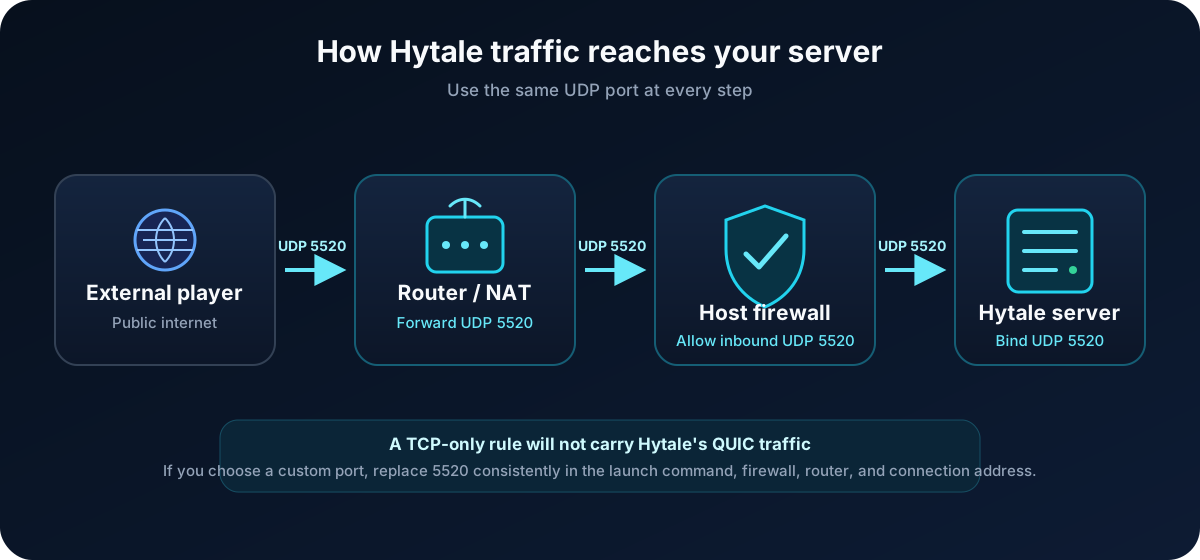
The router, host firewall, and Hytale launch command must all use the same UDP port. TCP-only rules do not carry Hytale's QUIC traffic.
4. Verify the installation
Test in this order:
- Confirm the console reaches a stable running state without an authentication error.
- Connect from the host or another device on the local network.
- Connect from outside the home network.
- Check
logs/after each failed attempt.
Testing the public address from inside the same network can fail on routers without NAT loopback. Use a genuinely external connection for the third test.
5. Review the generated files
Important paths include:
| Path | Purpose |
|---|---|
logs/ | Server logs |
mods/ | Installed .zip and .jar mods |
universe/ | Worlds and player save data |
config.json | Main server configuration |
permissions.json | Permission groups and assignments |
whitelist.json | Whitelist data |
bans.json | Ban data |
Stop the server before manually editing configuration. The server reads configuration at startup and can overwrite manual changes made while it is running.
Next steps
- Plan RAM, CPU, storage, and network capacity
- Follow the Linux and Ubuntu installation workflow
- Install and test server mods safely
- Troubleshoot connection and startup problems
- Configure backups and migrate a server
- Review the current release status
Official reference
Hytale server setup FAQ
Reviewed against the same official server baseline as this guide.
Why won't my Hytale server start?
Confirm that java --version reports Java 25, HytaleServer.jar and Assets.zip are present, and the launch command includes --assets Assets.zip. Then read the newest file in logs/ for the first startup or authentication error.
Why can I connect locally but my friends cannot?
A successful local connection proves the server is running but not that internet traffic can reach it. Allow the selected port through the host firewall, forward the same UDP port on the router to the server's reserved local address, and test from a genuinely external connection.
Why does my public address fail from inside my own network?
Some routers do not support NAT loopback, so a public address can fail from inside the home network even when external players can connect. Test with mobile data or another connection outside the network before changing a working forwarding rule.
What does a port already in use error mean?
Another process or server instance is already bound to that port. Stop the duplicate process or choose another UDP port, then use that same value in the Hytale launch command, Windows firewall rule, router forwarding rule, and player connection address.
Does a Hytale server need TCP or UDP port 5520?
The documented Hytale game connection uses QUIC over UDP, so the default rule is inbound UDP 5520. A TCP-only firewall or forwarding rule will not carry that traffic.